Preparing for a race weekend
Last Updated: April 19
Checking the Live Stream Score of the track
Use the LiveStreaming Score Page to check the live stream score of the track you will be streaming from and know what to expect in terms of latency and stream quality.
Adjust your streaming settings accordingly…
If the track is known to have poor coverage, consider using a lower resolution, FPS, and bitrate:
480p
30fps
1500kbps bitrate
If the track has good coverage, use these recommended settings:
720p
30fps
2500kbps bitrate
If the track has excellent coverage, you can either keep the settings above or try using higher settings:
720p
60fps (increased FPS)
3500kbps bitrate
Or:
1080p
60fps (increased FPS)
4500kbps bitrate
Warning
By default, the platform restreams to external destinations at a resolution of 720p. If you want to stream at 1080p, you need to update your stream event settings as well. Refer to Streaming at 1080p? for instructions on how to update your stream event settings to stream at 1080p.
Print the checklist
Print the Live Streaming Checklist to make sure you have everything covered before heading to the track.
Scheduling your streams for a race weekend
If a race weekend is coming up, you can and should schedule your stream events ahead of time to save time during the race weekend.
It is recommended to schedule one stream event per day and to set the start time to an hour before the first session or before going to the grid, and the stop time 30 minutes after the last session of the day.
For example, if you have the following race schedule:
Practice sessions all day on Friday (8AM to 5PM)
One endurance race on Saturday (9AM to 4PM)
One endurance race on Sunday (8AM to 3PM)
You should create 3 streams with the following start and stop times:
Stream Name |
Start Time |
Stop Time |
|---|---|---|
Friday Practice |
7AM |
5:30PM |
Saturday Race |
8AM |
4:30PM |
Sunday Race |
7AM |
3:30PM |
To see all your upcoming streams, go to the “Streams” page and click on the “Upcoming Streams” tab. You can change the stream’s scheduled start and stop times at any time before stream event goes live. Click on an event to expand it and see the details and possible actions.
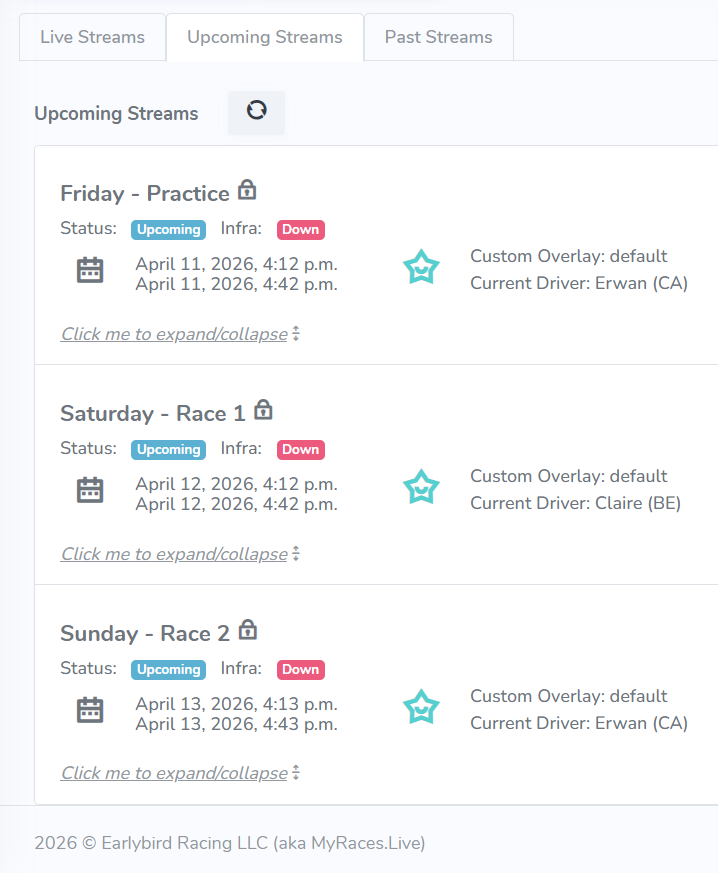
Upcoming Streams List
Note
Make sure to schedule your stream events with the timezone of the race track location in mind. The timezone used during the stream creation is displayed next to the start and stop time fields and is based on the timezone of the device you are using to create the stream event.
Note
With a free account, you can create up to 3 upcoming stream events. If you have more than 3 sessions to stream, you can either upgrade to a premium/pro account or create your stream events as you go (the day before each event).
Note
The same source camera cannot be used in two simultaneous stream events, and each event using the same camera needs to be scheduled at least 5 minutes apart.
Streaming to your own YouTube Channel
If you have connected your YouTube account to the platform (recommended), your YouTube Lives will be created and managed automatically for each stream event you schedule. No additional setup is needed per stream event beyond selecting your connected channel when scheduling.
If you haven’t connected your YouTube account yet, see Streaming to your own YouTube account for setup instructions.
Tip
Premium and Pro users can also stream to YouTube via a custom RTMP destination if they prefer to manage their YouTube lives manually. See Option B: Manual YouTube Stream Key (Legacy).
Streaming to other destinations (Twitch, Facebook, Instagram, etc.)
All users can save up to 3 custom RTMP/RTMPS destinations (Twitch, Facebook, Instagram, etc.) under Stream Destinations > RTMP Destinations.
The number of destinations you can use per stream depends on your subscription: Free and Premium users can select 1 destination per stream, while Pro users can select up to 3.
Follow the steps described here to set up custom destinations: Streaming to Twitch, Facebook, or Instagram.
Streaming for more than 12 hours?
If you are using Connected YouTube (recommended), the platform automatically handles the YouTube 12-hour archive limit by splitting your stream into multiple parts. No manual action is needed.
If you are using a manual YouTube stream key via a custom RTMP destination, you will need to manually manage the stream cutoff before the 12-hour mark to ensure your video is successfully archived.
For full instructions on handling long endurance races, refer to 4. How to handle > 12 hours of streaming on your own YouTube channel?.
Streaming at 1080p?
When streaming at 1080p, make sure to update the settings of your stream event so that we know what resolution to start the stream with on YouTube/Other Platforms:
In the Stream Event Creation/Update form, click on the “Camera” tab, then click on “Advanced Settings”.
Update the “Resolution” to match your streaming equipment settings.
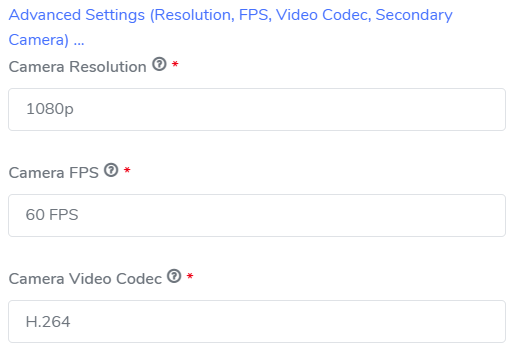
Advanced Settings - Resolution and FPS