Picture-in-Picture Streaming (Beta)
Last Updated: April 19
Warning
This feature is currently in beta and available to Premium and Pro subscribers.
If you’re running multiple cameras, you can now combine two video inputs into a single stream — perfect for capturing both front and rear views simultaneously. The secondary camera feed is displayed as a smaller picture-in-picture window in the top-right corner of your main stream.
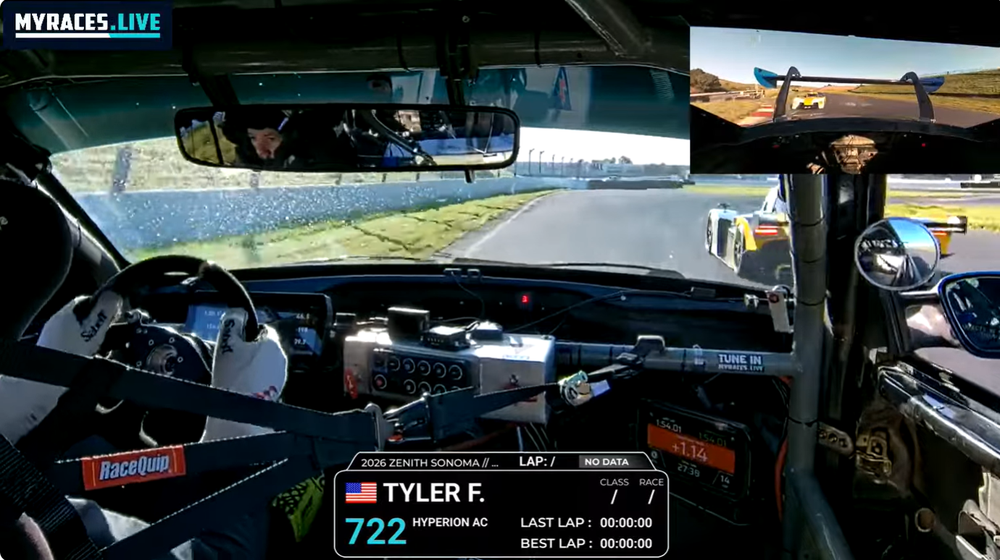
Picture-in-Picture example: secondary camera top right
Prerequisites
A Premium or Pro subscription.
A secondary streaming device (MineA5, Yi4K, or any RTMP-capable camera).
If you are using a Custom Overlay, make sure there is no overlay item in the top-right corner — this space will be used by the secondary camera feed.
Configuration Steps
1. Create a secondary camera
Navigate to Race Streaming > Cameras.
Click on “New Camera”.
Enter a name for your secondary camera (e.g., “Rear Cam”) and click “Create”.
2. Schedule a stream event with the secondary camera
Navigate to Schedule Streams > Streams.
Click on “Schedule a Stream Event”.
Fill in the form as usual.
Select your main camera as the source camera.
Click on “Advanced settings”.
Select your secondary camera in the “Secondary Camera” field.
Click “Start”.
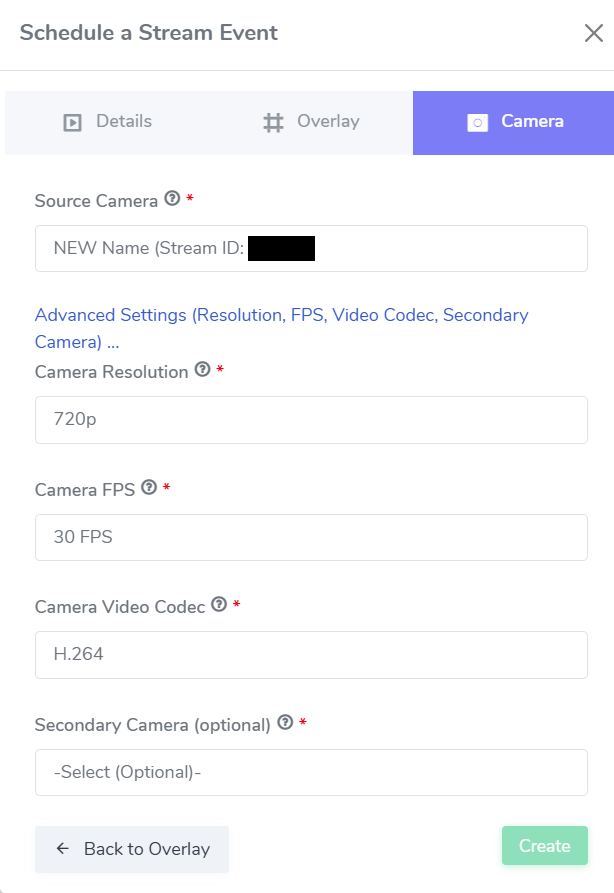
Selecting a secondary camera under Advanced Settings
3. Start streaming from both cameras
When the Stream Event infra status shows “Ready”:
Start streaming from your main camera as usual, using the RTMP URL associated with that camera.
Start streaming from your secondary camera using the RTMP URL associated with your secondary camera.
You can find the RTMP URL associated with each camera under the Stream Event > “CAMERA CONFIG” box, or on the Race Streaming > Cameras page.
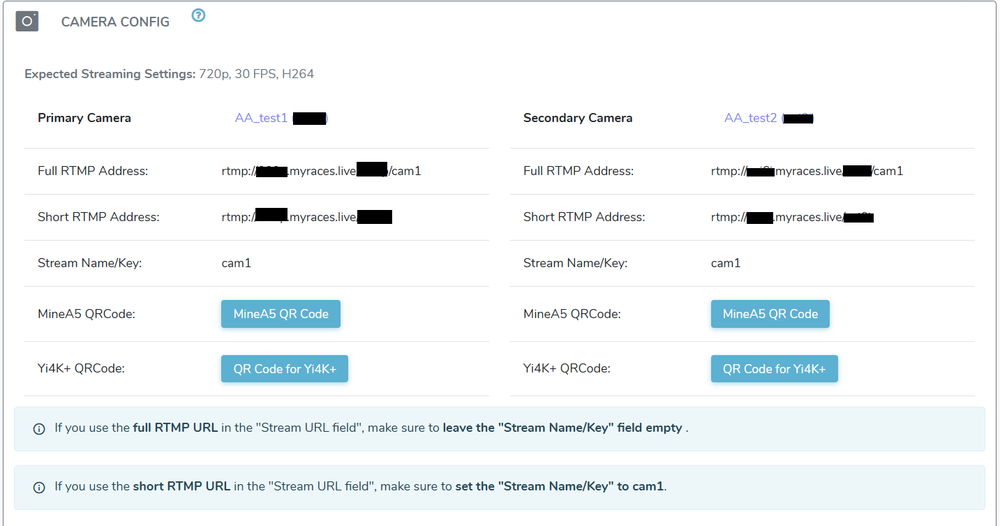
CAMERA CONFIG box showing RTMP URLs for both primary and secondary cameras
Note
The presence or absence of the secondary camera does not affect the stream health of the main camera. If the secondary camera feed is interrupted for any reason, the main stream will continue uninterrupted.